
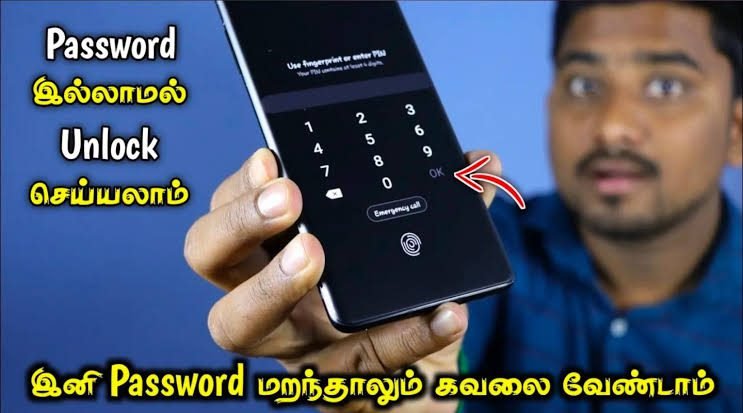
100% Working Mobile Password Unlock Trick
100% Working Mobile Password Unlock Trick Get locked out of your smartphone can be frustrating. Whether you forgot your PIN, pattern, or password, losing access to your device often feels like losing access to your digital life.
Fortunately, both Android and iPhone offer legitimate ways to regain access. This guide explains the safest and most reliable methods for unlocking a mobile phone without knowing the password, while protecting your data whenever possible.
Important: This article is intended only for unlocking a phone that you own or are authorized to access. Bypassing security on someone else’s device without permission is illegal and unethical.
What Does “Without Password Mobile Unlock” Mean?
A password-free mobile unlock refers to recovering access to your own smartphone when you’ve forgotten the lock screen credentials. Depending on your phone model, Android version, and whether cloud services were enabled, you may be able to:
Reset the lock screen
Erase and restore the device
Use your Google or Apple account
Recover data from backups
Regain access legally without third-party hacking tools
Modern smartphones are designed with strong security, so there is no universal secret code that unlocks every phone.
Common Reasons People Get Locked Out
Many users forget their password for perfectly normal reasons:
Changed PIN recently and forgot it
Didn’t use the phone for several weeks
Child accidentally changed the lock code
Pattern lock entered incorrectly too many times
Fingerprint stopped working after restart
Face Unlock unavailable in low light
Purchased a second-hand phone without removing the previous lock
Understanding the cause helps determine the best recovery method.
Method 1: Unlock Android Using Find My Device
If your Android phone is connected to your Google account and internet, Google’s Find My Device is one of the safest recovery options.
Steps
Open Find My Device on another device.
Sign in using the same Google account.
Select your locked phone.
Choose Erase Device.
Confirm the reset.
Restart the phone.
Sign in again with your Google account.
Advantages
Official Google solution
Works remotely
Removes forgotten password
Protects against unauthorized access
Limitation
The device will be erased unless a backup exists.
Method 2: Factory Reset Android
If Find My Device isn’t available, you can reset the phone using Recovery Mode.
General Procedure
Turn off the phone.
Press the correct button combination.
Enter Recovery Mode.
Select Wipe Data/Factory Reset.
Confirm the action.
Reboot the phone.
After the reset, you’ll need the same Google account previously used on the device because of Factory Reset Protection (FRP).
Popular Android Brands
Different manufacturers use slightly different recovery buttons.
Brand
Common Recovery Buttons
Samsung
Volume Up + Power
Xiaomi
Volume Up + Power
Vivo
Volume Up + Power
OPPO
Volume Down + Power
Realme
Volume Down + Power
Motorola
Volume Down + Power
The exact combination varies by model.
Method 3: Unlock Samsung Without Password
Samsung provides additional recovery features through its ecosystem.
If your Samsung account was previously enabled, recovery becomes easier.
Possible options include:
Samsung Find service
Factory reset
Restore from Samsung Cloud
Google account verification
Keeping Samsung Cloud backups enabled is highly recommended.
Method 4: Unlock iPhone Without Password
Apple offers official recovery through Finder or Apple Devices on Windows.
Steps
Turn off the iPhone.
Connect it to a computer.
Enter Recovery Mode.
Open Finder (Mac) or Apple Devices (Windows).
| 📲 Download App✅️ |
|---|
Choose Restore.
Install the latest iOS.
Sign in using your Apple ID.
After restoration, you can recover your data from iCloud backup.
Face ID and Touch ID Recovery
Many people think Face ID can unlock a forgotten password. That’s not true.
Face ID and Touch ID are convenience features, but after:
Restarting
Five failed attempts
Long inactivity
Security timeout
The device always requires the original passcode.
Can You Unlock Without Losing Data?
Sometimes yes—but it depends on the situation.
Situation
Data Safe?
Fingerprint works
Yes
Face Unlock works
Yes
Forgot PIN only
Usually No
Factory Reset
No
Cloud Backup Restore
Yes (after restore)
Regular backups are the best protection against data loss.
Google Account Recovery
If you forgot your Google password as well, recover it first.
You’ll generally need:
Recovery email
Recovery phone number
Identity verification
New password creation
Once recovered, the same account can activate your Android after reset.
Apple ID Recovery
Apple users should recover their Apple ID before restoring the device.
Typical verification includes:
Trusted phone number
Trusted Apple device
Email verification
Identity confirmation
Never purchase unofficial Apple ID removal services.
What Is Factory Reset Protection (FRP)?
FRP is a security feature introduced by Google.
Its purpose is preventing stolen phones from being reused after reset.
After factory reset, the phone asks for:
Previous Google account
Previous password
Identity verification
This protects legitimate owners from theft.
Is IMEI Unlock Real?
Many websites advertise IMEI unlocking.
It’s important to distinguish two completely different things.
IMEI Unlock
Screen Unlock
Removes carrier lock
Removes lock screen
Network related
Password related
Legal through carrier
Not a password bypass
Doesn’t unlock PIN
Doesn’t change IMEI
IMEI does not remove your screen password.
Avoid Fake Unlock Apps
Searching online often shows dangerous apps claiming instant unlocks.
Red Flags
“Unlock any phone in 30 seconds”
No Google account needed
No Apple ID required
Unlimited free bypass
Download APK from unknown websites
These apps may contain malware or steal personal information.
Safe Alternatives
Always choose official recovery options.
Google Find My Device
Samsung recovery tools
Apple Recovery Mode
Manufacturer service center
Cloud backup restoration
These methods are reliable and legal.
How to Protect Your Phone From Future Lockouts
1. Enable Cloud Backup
Automatic backups save photos, contacts, messages, and settings.
2. Add Multiple Biometrics
Register both fingerprints and Face Unlock where available.
3. Use a Memorable PIN
Avoid overly complicated numbers you’ll forget.
4. Save Recovery Information
Keep your recovery email and phone number updated.
5. Write Passwords Securely
Use a trusted password manager instead of paper notes.
